Notice what your current mouse makes difficult
Imagine editing a long document, dragging items around a spreadsheet, and switching to a personal laptop after work. Perhaps the current mouse feels cramped, or you keep reaching for the trackpad because scrolling is awkward. Identify one repeated difficulty before shopping. A new mouse can change the controls and physical fit of the workday, but it should not be bought on a promise to cure discomfort. This guide is about choosing equipment and evaluating its practical use. If you have persistent pain, seek appropriate professional advice instead of treating an accessory purchase as a diagnosis or treatment.
Begin with hand fit and handedness
Look at the mouse's actual dimensions and shape. A sculpted right-handed design may be unsuitable if you use the left hand or alternate hands. Logitech describes Lift as aimed at small to medium hands and offers a left-handed option. Its MX Master 3S materials describe a different sculpted design with additional scrolling controls. Those published descriptions help narrow the comparison without predicting which shape will feel best to you. If possible, try the format or buy with appropriate return terms. A very popular mouse can still be the wrong size or shape for the person using it.
Choose a shape you are willing to learn
A vertical mouse changes how the controls sit under the hand, so it may take a deliberate adjustment period. A conventional sculpted mouse can also feel different from a flat travel model. Start with low-pressure everyday tasks rather than demanding precision work immediately after switching. Adjust pointer settings sensibly in the operating system and move slowly enough to learn the controls. Do not interpret every unfamiliar moment as proof the product is wrong, but do not ignore discomfort either. The goal is a shape you can use naturally, not a challenge that requires constant attention.
Give the mouse enough room
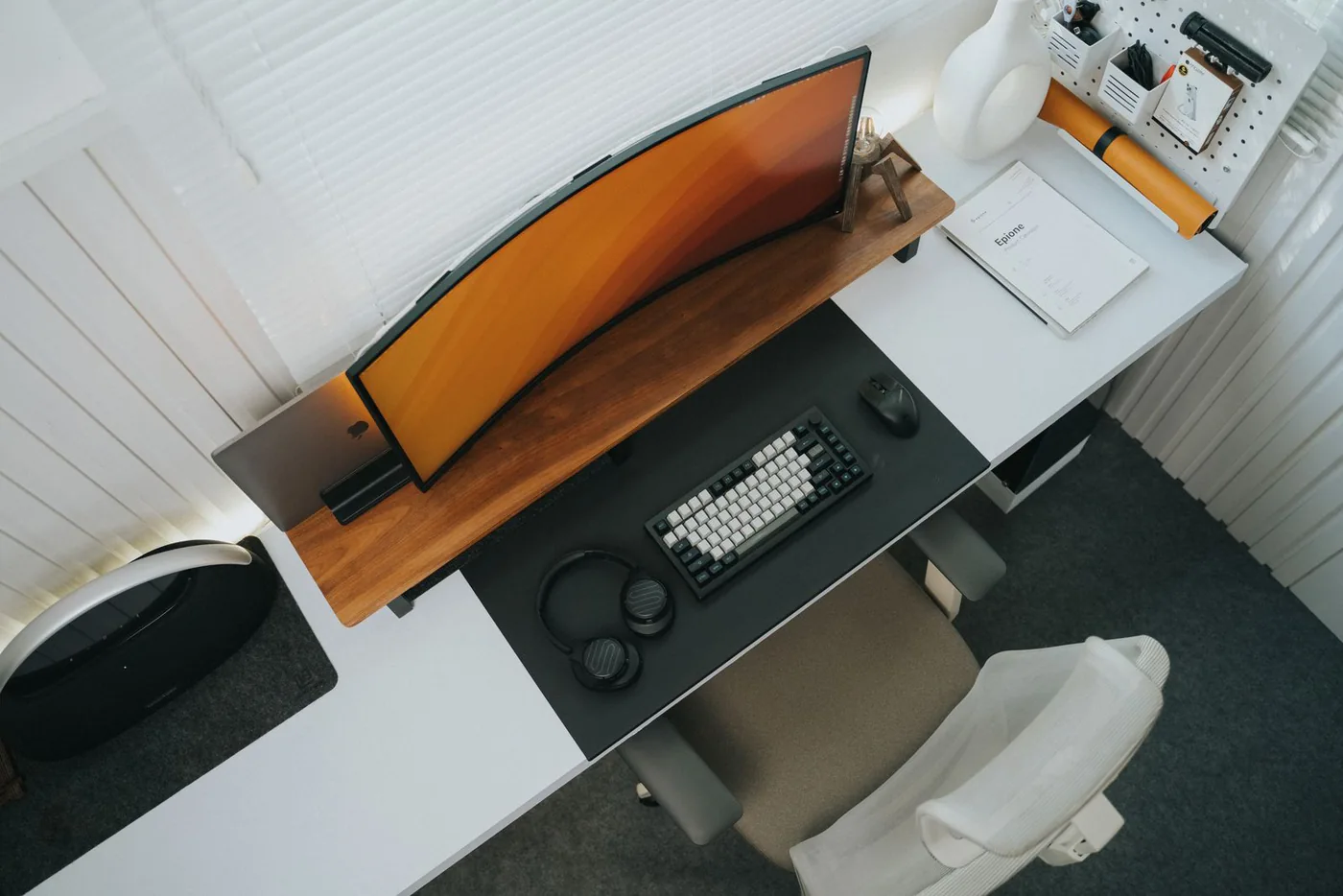
Measure the working space beside the keyboard, including the room your arm needs to move. A full-size keyboard can push the mouse farther out than expected. Moving to a smaller keyboard may solve the arrangement better than buying a mouse with more features. Check the surface requirements of the selected sensor and try the mouse on your actual desk. If a mat is useful, choose its size after arranging the equipment rather than buying a huge one because it appears in setup photos. Leave space for a notebook and everyday objects without crowding the mouse into a narrow strip.
Make extra controls earn their place
A thumb wheel or additional buttons can be useful for wide spreadsheets, editing timelines, or repeated commands. They can also be unnecessary if you mainly read, write, and click familiar menus. Name the task each control would improve before paying for it. Check whether customization needs software and whether your computer permits it. For more than one device, verify the switching method and connection support on the exact model. A clearly understood button you use every day is more valuable than a feature you cannot configure on the computer where you work.
Choose a power routine you will remember
Compare rechargeable and replaceable-battery arrangements around your habits. A rechargeable mouse can suit someone who keeps a suitable cable at the desk; a replaceable-battery product can suit someone who prefers an occasional battery change. Check whether the mouse can be used in the way you expect while charging rather than assuming the cable turns it into a wired model. Keep any receiver in a predictable place if you travel. For a shared workspace, verify that the connection does not depend on leaving an adapter in someone else's computer. Small routine details can determine whether the mouse feels dependable.
Where we would start the comparison
Compare Logitech Lift if its stated hand-size range, vertical shape, and available handedness fit your needs. Compare MX Master 3S if a conventional sculpted design and extra scrolling controls solve the work you do. Check current specifications and exact variants before ordering. Neither is presented here as a medical solution or as a product we have measured in a comfort study. During the return period, assess fit, pointer control, scrolling, and the room left beside the keyboard. Keep the one that removes the repeated annoyance you identified at the beginning, and skip extras that only make the purchase more expensive.
Where to start looking
These are starting points for comparison, based on manufacturers’ published information. Check the exact version, compatibility, current availability, price, and return terms before ordering. Manufacturer links below are ordinary links unless specifically labeled as affiliate.
Logitech Lift
Compare for a vertical shape with a stated small-to-medium-hand focus and a left-handed option.
The tradeoff: A new shape requires adjustment and is not a treatment for persistent discomfort.
Manufacturer details ↗Logitech MX Master 3S
Consider when additional scrolling controls fit document, spreadsheet, or editing work.
The tradeoff: Confirm dimensions, handedness, and software access before paying for the extra controls.
Manufacturer details ↗A few things you might be wondering
Will a vertical mouse fix wrist pain?+
This guide makes no treatment claim. Choose equipment for fit and usability, and seek appropriate advice for persistent pain.
Is a high sensor number important for office work?+
Start with comfortable pointer control, suitable dimensions, and the controls you need. A larger advertised number alone does not establish a better everyday fit.
Sources & editorial notes
Manufacturer and primary-source information checked October 23, 2026. Buying advice reflects our editorial interpretation. Features and regional options can change.
See our editorial policy or request a correction.