A drive should support a habit
Consider a household with years of phone pictures, a laptop used for work, and a camera card from a recent trip. The need is not simply somewhere to move files when the computer becomes full. It is a dependable way to keep another recoverable copy. An external SSD can be part of that plan, but a single drive containing the only copy of a folder is storage, not a backup. Decide what deserves protection and how often it changes before choosing a capacity. A modest drive used on a schedule is more valuable than a fast one left unopened in a drawer.
Measure the files you need to keep
Open your storage settings and inspect the folders you actually want to protect. Separate active projects from collections that rarely change, and account for the next year of likely growth. If you record long videos, look at several real projects rather than assuming your photo library represents the workload. Choose enough capacity for useful headroom without paying for a hypothetical professional workflow. Also check the backup software's space requirements. Some systems keep previous versions, so a drive that barely fits today's files can become restrictive quickly. Write the chosen folders into a simple backup checklist that another person in the household could understand.
Two drive families worth comparing
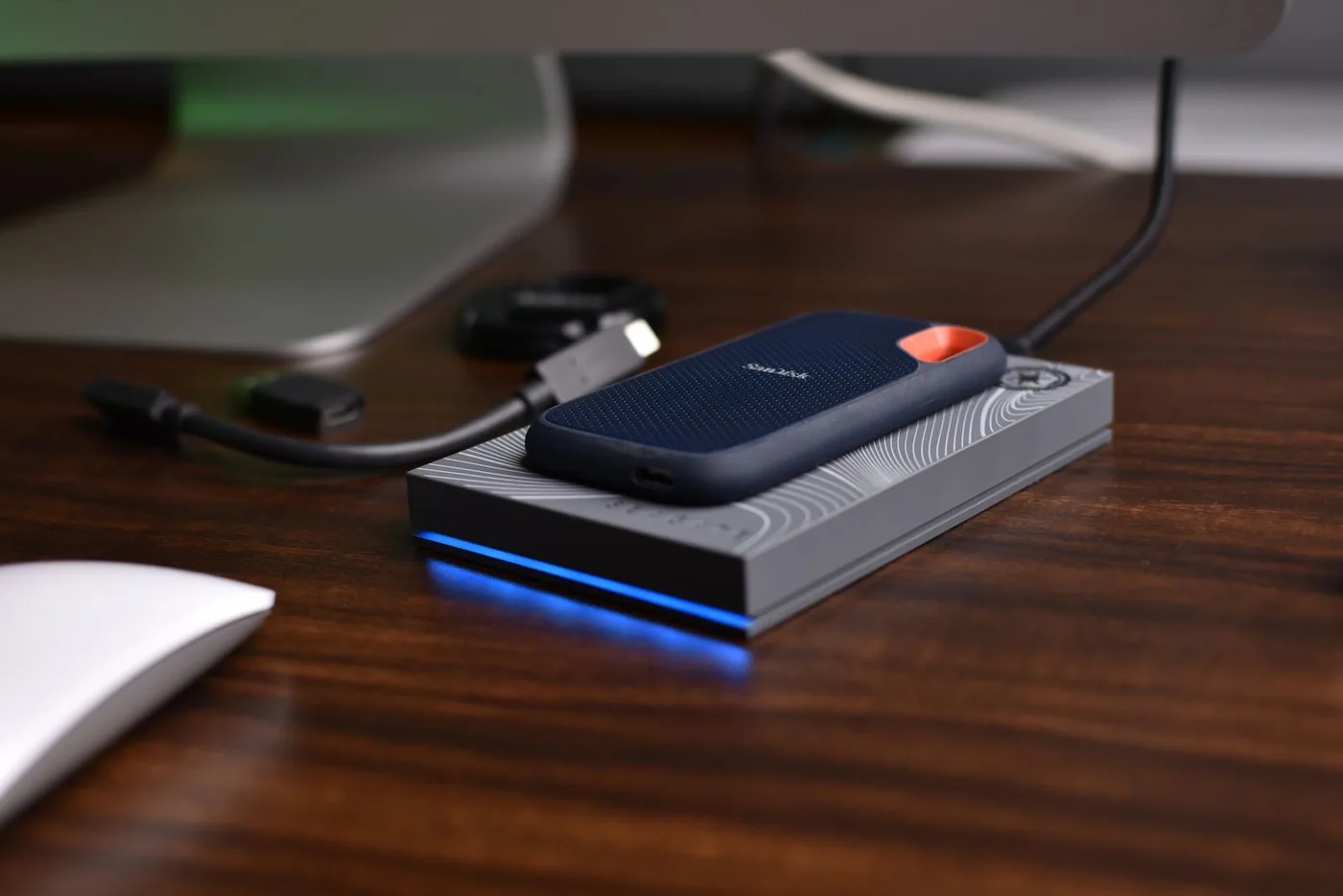
Samsung's T7 Shield is a portable SSD option with a protective exterior; Samsung publishes an IP65 resistance rating under specified conditions. Crucial's X9 is another portable SSD family to compare for everyday file storage. These are manufacturer-based starting points rather than evidence that either unit will survive every accident or outperform the other in your computer. Read the current capacity-specific information and included cable list before ordering. Keep the comparison focused on your workflow: a drive carried to classes faces a different routine from one that stays beside a desktop. Avoid treating any resistance claim as permission to stop making additional copies.
Check the slowest part of the connection
A fast drive connected through an older port or a limited cable may not deliver the transfer behavior implied by the largest number on its packaging. Look up your computer's port specification and use a cable that supports the connection you intend. If a hub sits between the computer and SSD, check that as well. For weekly document backups, peak speed may have little practical importance. For moving large project folders every evening, waiting time matters more. Decide which situation describes you before paying extra. Manufacturer speed figures are not a promise about every mixture of small files, software settings, and host hardware.
Plan the recovery, not just the copy
Choose a backup application or a repeatable copying process, and learn how to restore a file from it. Create a small test document, back it up, and confirm that you can recover it into a different folder. For important material, keep another copy in a separate place, such as a suitable cloud service or another drive stored elsewhere. Consider account recovery and access if somebody else needs the files. If you encrypt the SSD, store the recovery information securely away from the device. A perfectly intact drive does not help when nobody can unlock it or identify which folder contains the latest version.
Spend on a complete protection plan
If the choice is between the fastest premium drive and a simpler drive plus a second copy of irreplaceable material, the second option may better serve a family archive. Pay attention to the return process and the manufacturer's service terms, but remember that hardware replacement is different from recovering lost files. A small pouch, a labeled cable, and a dedicated storage spot can make the routine easier to sustain. Avoid buying several capacities speculatively during a sale. Start with a clearly assigned role for the drive and add storage when the actual archive demands it, rather than confusing accumulation with a resilient backup system.
Make the first backup a scheduled task
Set aside an evening when you can leave the computer connected and monitor the initial process. Confirm the drive format suits the devices that need access before transferring the only available copy of anything. Keep originals until the backup has completed and you have checked a sample of files. Name the drive clearly and record the date of the last successful backup somewhere easy to see. Disconnect it appropriately when your process is finished, following the operating system's instructions. Review the plan after a major trip or computer change. The strongest reason to buy an SSD is that it makes a useful routine convenient enough to repeat.
Where to start looking
These are starting points for comparison, based on manufacturers’ published information. Check the exact version, compatibility, current availability, price, and return terms before ordering. Manufacturer links below are ordinary links unless specifically labeled as affiliate.
Samsung T7 Shield
Consider for a drive that regularly travels with your laptop.
The tradeoff: Resistance ratings have conditions, and the drive still needs an independent backup.
Manufacturer details ↗Crucial X9
Compare as an everyday storage option using the manufacturer's capacity and connection information.
The tradeoff: Check current availability and the exact model rather than confusing it with X9 Pro.
Manufacturer details ↗A few things you might be wondering
Is an external SSD enough for backup?+
It can hold one backup copy. Important files should also have another independent copy, ideally kept separately.
Should I buy the fastest drive?+
Only when your host connection and repeated workload make the extra speed useful. Capacity and a recoverable backup process may matter more.
Sources & editorial notes
Manufacturer and primary-source information checked October 23, 2026. Buying advice reflects our editorial interpretation. Features and regional options can change.
See our editorial policy or request a correction.