Build around the call you actually make
Imagine joining a team meeting from a small bedroom office. The window is behind you, the laptop sits low on the desk, and your face occupies the bottom corner of the frame. A new webcam might help, but it will not automatically fix those choices. Before shopping, move the laptop or light so your face receives even illumination, bring the camera nearer eye level, and wipe the lens carefully. Then make a short recording using the application you use for work. Keep a note of what remains frustrating: framing, exposure, movement, or the effort of setting everything up.
Choose your framing before choosing a sensor
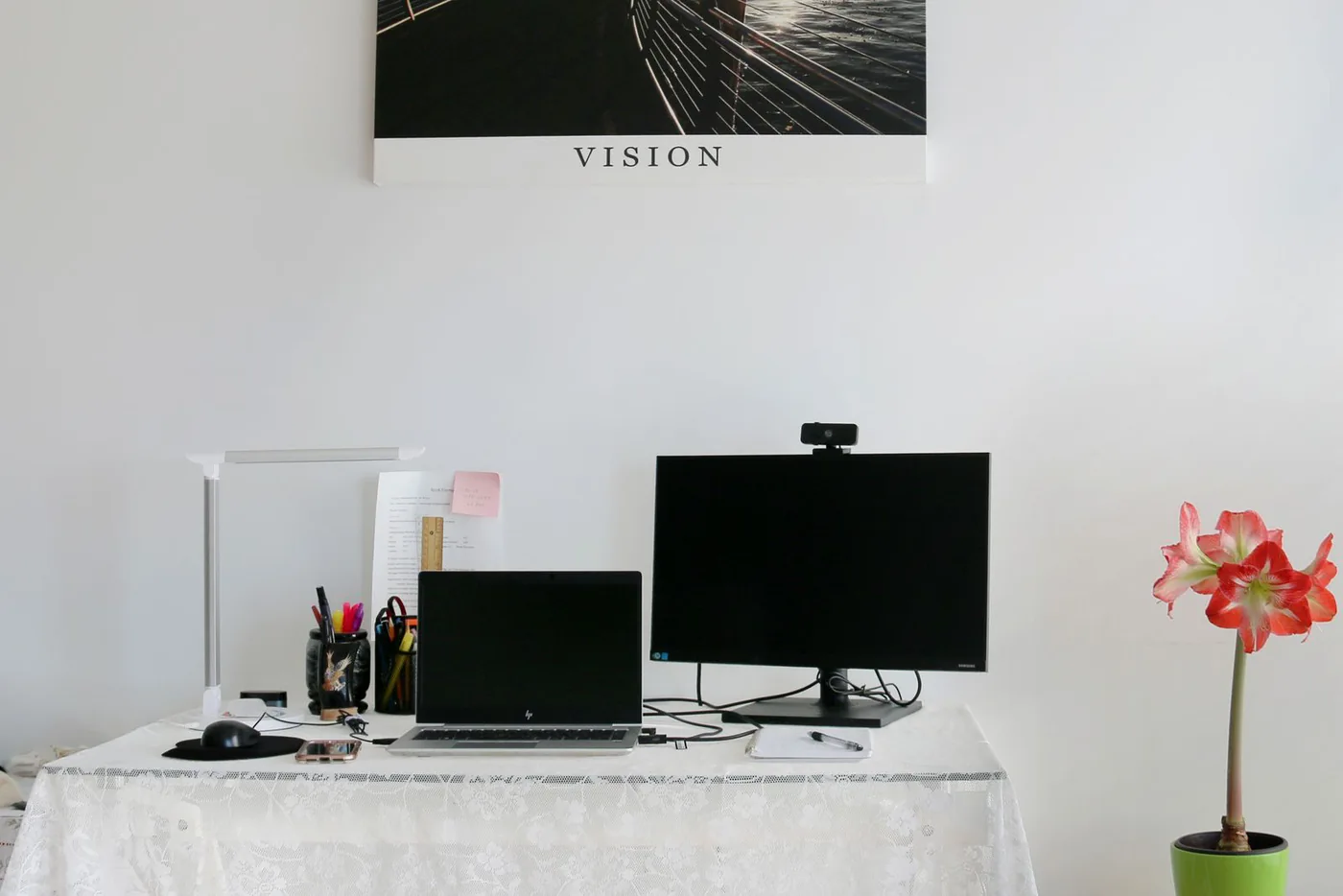
A person speaking alone at a narrow desk needs a different composition from two people sharing a family call. Consider what a wide view reveals behind you, including doors and private paperwork. If you regularly demonstrate sketches or show a physical object, make sure the camera mount can support that routine without repeated repositioning. Measure the space around your monitor, especially if a light bar already occupies its upper edge. The best webcam for your room is partly a question of where it can sit securely. A larger specification number cannot compensate for a camera that points at an awkward angle.
Two starting points with different priorities
Logitech describes the Brio 500 as a 1080p webcam with light correction, auto-framing, and Show Mode. That makes it worth considering for ordinary meetings and desk demonstrations. Elgato's Facecam is positioned around 1080p60 capture and Camera Hub controls, making it a candidate for people who want to manage a more deliberate recording setup. These recommendations follow the manufacturers' published features; we have not compared their image quality in a controlled test. Choose the category of experience you want first. Automatic adjustments can simplify a meeting routine, while manual control is useful only if you are willing to learn and maintain it.
Do not spend the microphone budget by accident
Video and sound deserve separate decisions. If your existing headset makes speech clear and keeps household noise manageable, keep using it while you evaluate a new camera. Check whether the webcam includes a microphone and whether you actually want the conferencing app to select it. A desk full of available audio devices can create confusion when the app switches inputs. Before an important call, confirm the chosen microphone and speaker in settings. If people repeatedly ask you to repeat yourself but nobody mentions the picture, direct the next purchase toward the audio problem. A camera upgrade cannot solve a distant or poorly positioned microphone.
Match the purchase to the working week
For one occasional family call, your existing camera may remain the sensible choice after improving the room. For several client conversations each day, a dedicated camera may earn its place by allowing a consistent monitor setup. For demonstrations and recorded lessons, consider whether the mounting position, software controls, and cable route fit that repeated activity. Budget for a simple stable support if necessary, but avoid building an entire studio before you understand the problem. Keep some flexibility for a lamp or curtain adjustment. The room and the camera form one system, and a modest environmental change can make the equipment easier to use.
Check software and workplace restrictions
Read the camera's operating system requirements and ask whether your employer permits its optional configuration software. Some people can install anything on a personal computer; others work on a managed machine where settings must be approved. Verify the physical connector and whether your dock can accommodate it without a stack of adapters. Think about a privacy cover and an obvious way to know when a call is active. If several people share the desk, make a small setup note explaining which app controls the camera. A feature you cannot access on your actual work computer should not carry much weight in the buying decision.
Use the return period as a room check
Once the camera arrives, record a brief clip in morning light and another after sunset. Try the meeting application, the display arrangement, and the headset you expect to use together. Check whether automatic framing behaves sensibly when you reach for notes or lean back. Invite a trusted person to comment on speech clarity and framing, not a numerical score. Keep private material outside the camera's view and close the cover when the desk is unattended. If the new setup requires constant corrections during ordinary calls, consider returning it. A reliable repeatable view is more useful for work than an impressive result you can reproduce only occasionally.
Where to start looking
These are starting points for comparison, based on manufacturers’ published information. Check the exact version, compatibility, current availability, price, and return terms before ordering. Manufacturer links below are ordinary links unless specifically labeled as affiliate.
Logitech Brio 500
A meeting-focused option for people who value assistance with framing and desk demonstrations.
The tradeoff: Check access to optional software and your preferred mounting position.
Manufacturer details ↗Elgato Facecam
A starting point for a more controlled recording or presentation setup.
The tradeoff: Budget time to learn the controls and arrange separate audio if needed.
Manufacturer details ↗A few things you might be wondering
Is 4K necessary for video meetings?+
Start with the resolution your meeting service delivers and the problem in your current picture. Lighting and framing may deserve attention first.
Can I keep my headset?+
Yes. Select it explicitly in the meeting app so a newly connected camera does not unexpectedly change your audio setup.
Sources & editorial notes
Manufacturer and primary-source information checked October 23, 2026. Buying advice reflects our editorial interpretation. Features and regional options can change.
See our editorial policy or request a correction.